
Add your profile to Apple Wallet or Google Wallet
Updated
A Wallet pass puts your profile's QR code in your phone's Wallet. Open the pass, and the other person scans the code to open your profile. Wallet passes come with every Mibio product and with Pro.
In the Mibio app
- In the Profiles tab, open the profile.
- Tap the menu button at the top right and choose Add to Wallet.
- Check the name, email, phone number, job title and company, and pick the colors.
- Tap Add to Wallet at the bottom of the screen.
- Follow your phone's prompt to add the pass to Apple Wallet or Google Wallet.
On the website
- Log in at www.mibio.bio on a computer and open your profile.
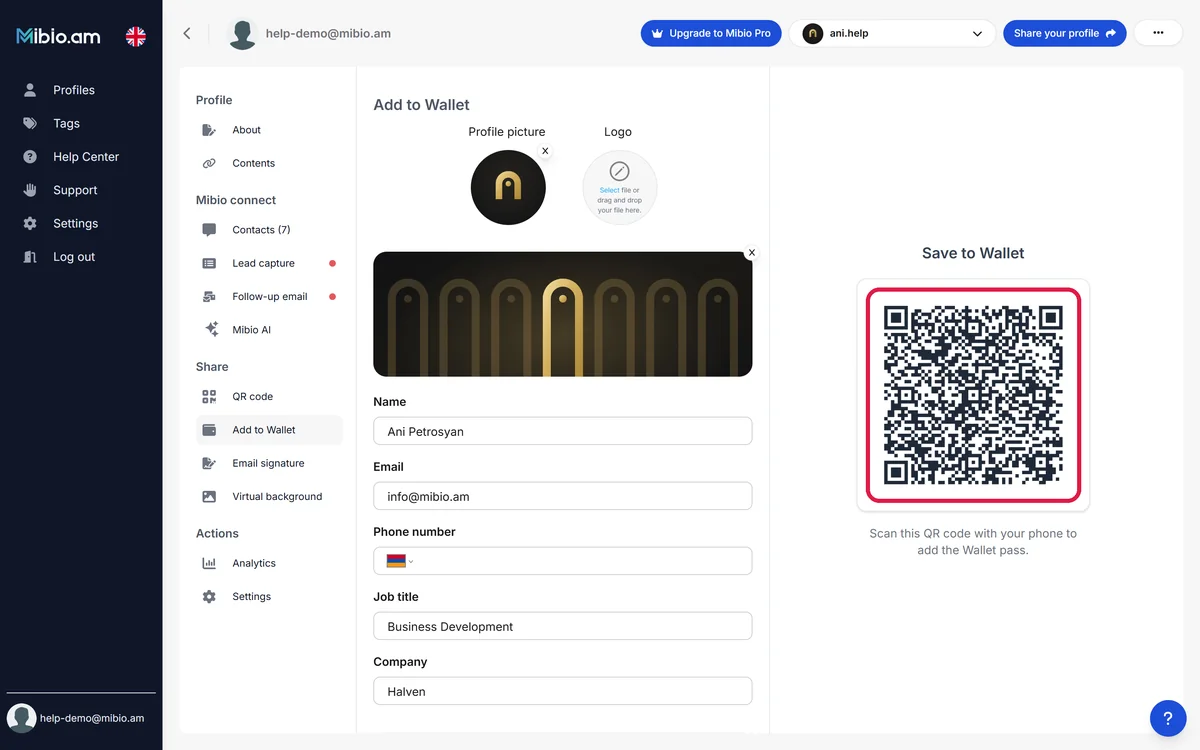
- In the menu on the left, under Share, choose Add to Wallet.
- Check the details and colors, then click Save.
- Scan the QR code on the screen with your phone's camera.
- Your phone opens the pass: add it to Apple Wallet on an iPhone or Google Wallet on Android.
On a phone's browser, tap the Add to Wallet button under the details instead of scanning the code.