
Connect your CRM or Google Sheets
Updated
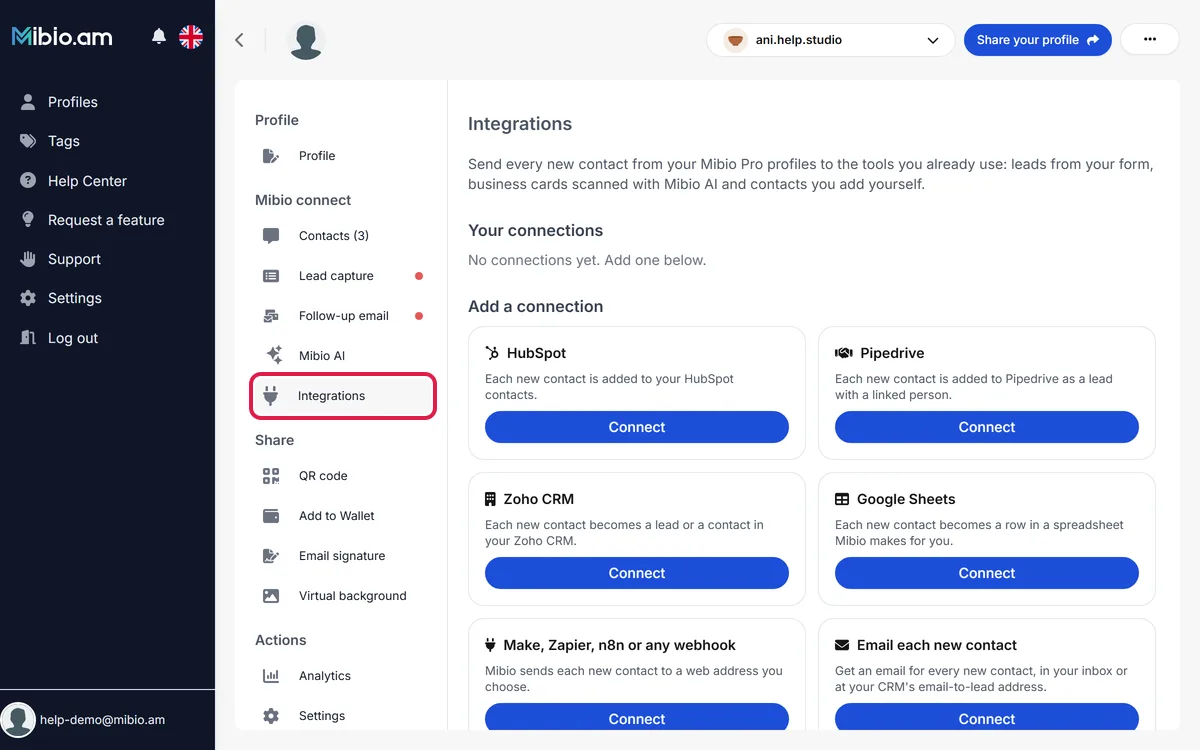
With Mibio Pro, every new contact on your profile can be sent to the tools you already use: leads from your form, business cards scanned with Mibio AI and contacts you add yourself.
- HubSpot: each contact is added to your HubSpot contacts.
- Pipedrive: each contact is added as a lead with a linked person, or as a person only.
- Zoho CRM: each contact becomes a lead or a contact.
- Google Sheets: each contact becomes a row in a spreadsheet that Mibio creates for you.
- Make, Zapier, n8n or another tool: each contact is sent to a webhook address you choose.
- Email: each contact arrives as an email, in your inbox or at your CRM's email-to-lead address.
Connect a tool
- Log in at www.mibio.bio and open your profile.
- In the menu on the left, under Mibio connect, choose Integrations.
- Find your tool and click Connect.
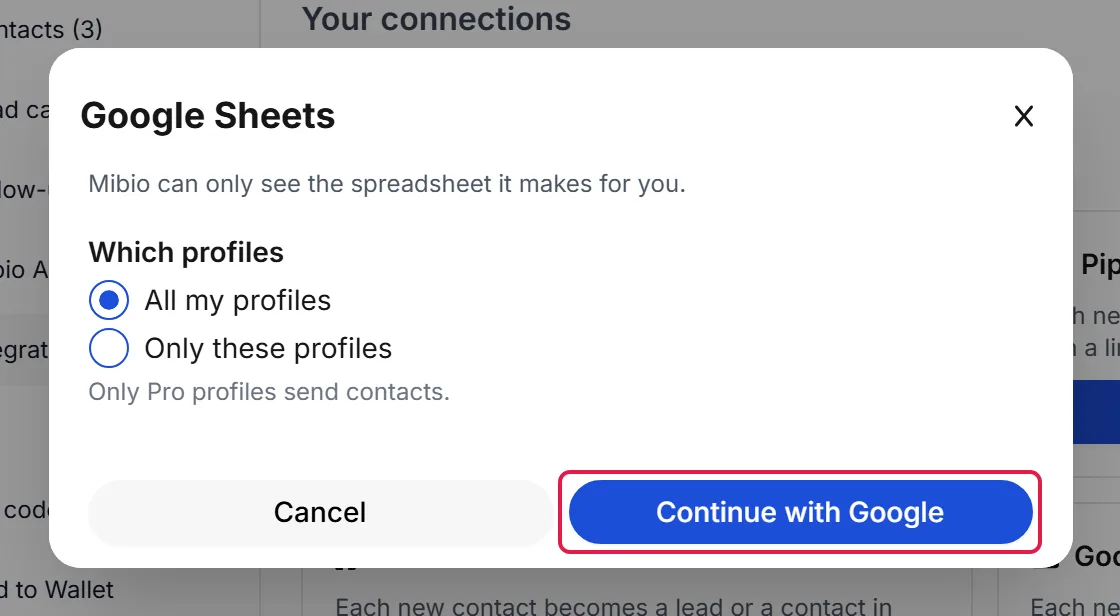
- Choose which profiles send contacts: All my profiles or Only these profiles.
- For HubSpot, Pipedrive, Zoho CRM or Google Sheets, click the Continue with button, sign in to your account and allow access. For a webhook or an email address, enter the address and click Connect and send a test.
- Mibio sends a test contact so you can see where it arrives. The connection then appears under Your connections.
Send the contacts you already have
New contacts are sent from the moment you connect. To send earlier ones as well, click Send existing contacts on the connection and confirm. Up to 2,000 contacts are sent over the next few minutes (500 for an email address), and contacts that were already sent are skipped.
Good to know for each tool
- HubSpot: if someone is already in your HubSpot contacts, their details stay as they are, and Mibio fills in only the empty fields.
- Pipedrive and Zoho CRM: in the connection window, choose under Create as whether each contact becomes a lead or a contact (a person in Pipedrive). Zoho CRM needs to be set up in your Zoho account first; the free edition is enough.
- Google Sheets: Mibio creates a spreadsheet named Mibio contacts and can see only that file, never your other files. Click Open sheet to view it. Please keep the name of its Contacts tab, as new rows are added there.
- Make: add the Webhooks module, choose Custom webhook, click Add, then copy the address.
- Zapier: choose Webhooks by Zapier, then Catch Hook, then copy the address. Zapier's webhooks need a paid Zapier plan.
- Webhooks: after connecting, Mibio shows a signing secret once. Your tool can use it to confirm that each request comes from Mibio.
- Email: every email includes a link to turn these emails off.
See where a contact was sent
Each contact's page in Contacts shows Sent to, with the tools it reached.
If a connection stops
If a tool stops accepting contacts, for example after its key is deleted or its trial ends, the connection shows Stopped with the reason, and we email you. Click Reconnect within 7 days, and the contacts that were waiting are sent automatically.
If none of a connection's profiles has Mibio Pro, the connection shows Paused. New contacts are sent again once one of those profiles has Pro.
Disconnect a tool
Click Disconnect on the connection, then confirm. New contacts are no longer sent there, and the contacts already sent stay in your tool. Disconnecting Google Sheets also removes Mibio's access to your Google account.